What does collate mean on a printer? Well, you’re in for a treat! Imagine you’ve just printed a thick book, and instead of a lovely stack of chapters neatly arranged, you get a mess of pages scattered like confetti at a wedding. That’s where collating struts in like a superhero to save the day!
Collation in printing refers to the process of arranging printed pages in the correct order, so when you’re putting together documents, everything flows smoothly. It’s especially handy when printing multiple copies of multi-page documents, making sure you don’t end up with a jigsaw puzzle instead of a report!
Definition of Collate in Printing
In the world of printing, the term “collate” refers to the arrangement of printed pages in a specific order to create a complete document. This process ensures that all pages are organized correctly, making it easier for users to compile and distribute documents. Collating is especially important in tasks where multiple copies of documents are printed, as it saves time and reduces errors in the assembly of printed materials.Collating affects the order of printed pages by sequencing them in a logical manner.
For instance, when a document consists of several pages, collating ensures that each set of pages is printed together and in the correct order. Without collating, an assembly of pages may end up in a jumbled mess, leading to confusion and frustration when trying to compile a complete document.
Common Scenarios for Collating in Printing Tasks
Understanding when and where collating is commonly applied can help streamline various printing tasks. Here are key examples of scenarios where collating proves essential:
- Business Reports: In corporate environments, printing reports with multiple sections requires collating to ensure that the information flows logically from one page to the next, allowing for easy navigation by readers.
- Presentations: When creating handouts for presentations, collating ensures that each participant receives a complete set of slides in the correct order, enhancing the overall effectiveness of the presentation.
- Educational Materials: Teachers often print worksheets and study materials for students. By collating these documents, educators can distribute organized packets, making it easier for students to follow along.
- Manuals and Booklets: For product manuals or booklets, collating ensures that all pages are in sequence, providing a smooth reading experience without the hassle of sorting through mixed-up pages.
“Collating transforms chaos into order, making printed documents more accessible and user-friendly.”
How Collation Works in Printers
In the fast-paced world of printing, collation is the unsung hero that organizes printed materials into a manageable format. Whether you’re printing out presentations for a meeting or handouts for a class, collation ensures that your documents are assembled in the correct order. Understanding the mechanisms behind collation in printers can help you make the most of this essential feature and streamline your printing tasks.Printers utilize a combination of hardware and software to facilitate collation.
When a print job is initiated, the printer receives a command that Artikels the number of copies needed and the desired order of pages. The printer’s internal processing unit manages the data flow, ensuring that each page is printed in sequence. In automatic collation, the printer sorts and arranges the pages as they are printed, stacking them in the correct order to create complete copies.
Manual collation, on the other hand, may require the user to physically sort the printed pages after they have been produced, which can be more time-consuming.
Automatic and Manual Collation
Automatic collation is a game-changer when it comes to efficiency, but understanding the differences between automatic and manual collation is crucial for optimizing your printing experience. Automatic collation is integrated into most modern printers, utilizing advanced technology to ensure each copy is printed succinctly and accurately. The printer handles the sorting internally, allowing users to set their preferences through printer settings without any additional effort.
This method is ideal for large print jobs where time and accuracy are paramount.Manual collation, conversely, requires a bit of elbow grease. When using this method, the user must monitor the printing process and then manually arrange the pages into the correct order post-printing. While this may be feasible for smaller jobs, it can quickly become cumbersome with larger documents.To streamline the process, here’s a step-by-step procedure for setting up collation on a printer:
1. Power Up the Printer
Ensure that your printer is turned on and connected to your device.
2. Select Your Document
Open the document you want to print. This could be a Word document, a PDF, or any file that you wish to print.
3. Open Print Settings
Click on ‘File’ and then select ‘Print’ to open the print dialogue box.
4. Access Printer Properties
Look for an option labeled ‘Printer Properties’ or ‘Preferences’ to access advanced settings.
5. Choose Collation Option
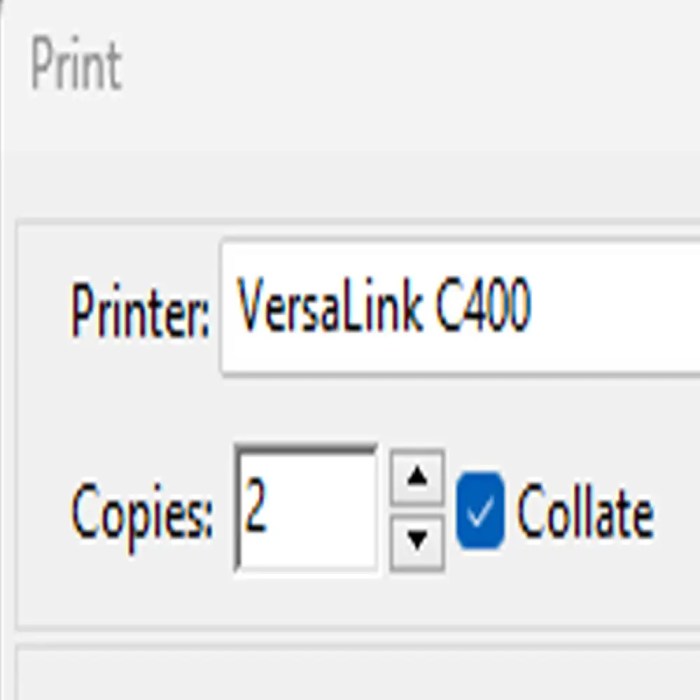
In the settings, locate the ‘Collate’ checkbox or dropdown menu. Make sure to select the option for ‘Collate’ or ‘Collation’ to enable automatic sorting.
6. Adjust Other Settings
Confirm any other print settings, such as number of copies, page range, and paper size, to match your needs.
7. Preview Your Print Job
If available, utilize the print preview feature to ensure everything looks correct.
8. Initiate Printing
Click ‘Print’ and sit back as your printer does the heavy lifting, producing neatly organized copies of your document.
“Collation transforms chaos into order, one page at a time.”
Benefits of Using Collate in Printing

When it comes to printing documents, collating might not be the first thing that pops into your mind, but it packs a punch in terms of efficiency and organization. For anyone who has ever had to assemble a stack of papers, the advantages of collating can be a total game-changer. Whether you’re printing reports for work, handouts for a class, or marketing materials for your latest venture, understanding these benefits can save you precious time and resources.Collation streamlines the printing process by organizing pages in a specific order, which helps to eliminate the chaos that can arise from dealing with uncollated prints.
This is especially true in environments where multiple copies of the same document are required. Instead of printing an entire run of one page followed by the next page, collated printing ensures that each set is complete, ready to go straight into a binder or folder without any additional sorting.
Advantages of Collating Printed Documents
The benefits of collating are numerous, especially in professional and educational settings. Here are some key advantages:
- Enhanced Organization: Collated prints keep documents neatly organized, making it easier for users to access the information they need without the hassle of sorting through piles of paper.
- Time-Saving: By printing documents in a collated manner, users can drastically cut down on the time spent assembling prints. No more mixing up pages or wasting time searching for the right order.
- Resource Efficiency: Collating reduces the risk of errors, which can lead to wasted paper and ink. Fewer misprints and reprints mean you’ll be saving both money and resources.
Scenarios Where Collating Saves Time and Resources
In various scenarios, the power of collating shines through as a time-saving and resource-efficient solution. Consider these practical examples:
- Business Presentations: When preparing multiple copies of a presentation for a meeting, collating ensures each participant receives a complete, organized packet without the need for assembly.
- Academic Materials: Teachers printing handouts for class can save significant time when collating, allowing them to spend more time on instruction rather than logistics.
- Marketing Campaigns: For businesses running promotional events, collating brochures and flyers means they can hand them out quickly, ensuring a professional appearance.
Comparisons Between Collated and Uncollated Printing Outcomes
Understanding the differences between collated and uncollated printing can further highlight the benefits of choosing to collate. Consider these points of comparison:
- Collated Printing: Each set is printed in order, creating a complete document ready for distribution. This reduces the chances of mixed pages and improves professionalism.
- Uncollated Printing: Prints are produced one page at a time for all copies, requiring subsequent assembly. This method can lead to confusion, misalignments, and wasted time.
“Collating is not just a feature; it’s a necessity for anyone serious about efficiency and organization in document handling.”
Common Issues with Collation

When it comes to printing multiple documents, collation may seem like a breeze, but it can lead to some frustrating hiccups. Collation errors can disrupt workflow, especially in professional environments where time is of the essence. Understanding these common issues and troubleshooting them effectively can save both time and sanity. Various problems can arise during the collation process that can throw a wrench in your printing plans.
These may include misaligned pages, mixed-up document order, and even printer memory overload. Addressing these issues promptly can help maintain the smooth operation of your printing tasks.
Typical Problems Encountered
Several common issues can disrupt collation during printing. Here are a few of the most significant problems:
- Incorrect Page Order: One of the most frequent issues is when pages print out of sequence. This often happens when selecting the wrong settings or if the printer encounters an error mid-job.
- Misaligned Pages: Pages can come out skewed, leading to a disjointed presentation. This is often due to paper jams or improper paper loading in the tray.
- Printer Memory Overload: Larger jobs can overwhelm a printer’s memory. This can lead to incomplete jobs or the printer freezing, resulting in a backlog of documents to collate.
- Multiple Copies Printing as Single Sheet: Sometimes printers may misinterpret the command and print multiple copies of a page on one sheet, defeating the purpose of individual copies.
Troubleshooting Tips
To keep your printing flow smooth and error-free, it’s essential to know how to troubleshoot common collation issues effectively. Here are some handy tips:
- Double-check Printer Settings: Always ensure that collation settings are correctly selected before starting the print job. Look for options like “collate” within the print dialog.
- Update Printer Drivers: Outdated drivers can cause performance issues, including collation errors. Regularly update your printer drivers for optimal performance.
- Clear Print Queue: If the printer is frozen or slow, clearing the print queue can help reset the device and alleviate memory overload problems.
- Check Paper Alignment: Make sure the paper is loaded correctly in the tray. Misalignment can lead to skewed prints, creating a headache during collation.
Implications of Incorrect Collation
The consequences of incorrect collation in a professional setting can be more than just a minor inconvenience. Here’s why getting it right matters:
- Loss of Professionalism: Incorrectly collated documents can tarnish a company’s image, especially when presenting reports, proposals, or marketing materials.
- Wasted Time and Resources: Reprinting documents due to collation errors can lead to unnecessary waste of both paper and ink, impacting overall operational costs.
- Frustration Among Staff: Frequent errors can lead to frustration, reducing productivity and morale within teams who depend on flawless document handling.
- Client Disappointment: For businesses that deal directly with clients, improper collation of materials can negatively affect client relationships and trust.
Different Types of Collation
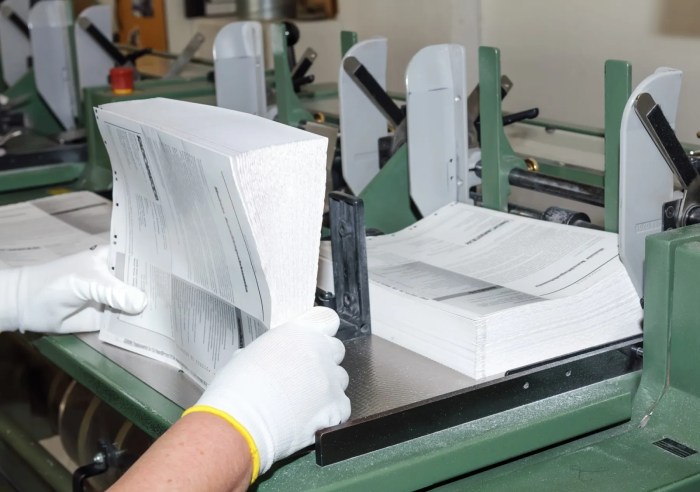
When it comes to printing, understanding the different types of collation is essential for achieving the right look and feel for your documents. Whether you’re printing single-sided reports or double-sided handouts for that big presentation, each method of collation has its unique advantages and applications. Let’s dive into the varieties of collation and see how they fit into your printing needs.
Single-Sided vs. Double-Sided Collation
Single-sided collation refers to printing each page on one side of the paper only, while double-sided collation prints on both sides of the paper, also known as duplex printing. The choice between the two depends on factors like the intended use of the document and the printer’s capabilities.
Single-Sided Collation
This method is straightforward and ideal for documents where blank pages between prints are not an issue, such as flyers or single-page handouts. It allows for easy reading without flipping pages.
Double-Sided Collation
Also known for its eco-friendliness, this method reduces paper consumption and is perfect for multi-page documents. It presents a professional look and is often used in reports, books, and academic materials.In the realm of printing, double-sided collation can save space and make documents easier to handle. It is particularly favored in corporate and educational settings.
Collating in Multi-Page Documents
When dealing with multi-page documents, collation becomes a game-changer. Collating ensures that pages are arranged in the correct order, which is crucial for readability and organization. This is especially useful when printing multiple copies of a single document.
- In scenarios where multiple copies of a document are required, such as presentations or handouts, collation helps avoid the chaos of mixing up pages.
- For example, if you need to print five copies of a ten-page report, collated printing will produce stacks where each copy is organized as pages one through ten sequentially. This contrasts with uncollated printing, where each page could be printed multiple times, leading to a messy pile that requires manual sorting.
Comparison of Different Collation Types and Their Applications
The choice of collation type can significantly impact the efficiency and effectiveness of your printing tasks. Here’s a comparison table that highlights the various types of collation and their specific applications:
| Collation Type | Description | Primary Applications |
|---|---|---|
| Single-Sided Collation | Pages printed only on one side of the paper. | Flyers, posters, and brochures. |
| Double-Sided Collation | Pages printed on both sides of the paper. | Reports, books, and academic papers. |
| Collated Printing | Pages are arranged in order for multiple copies. | Handouts, presentations, and manuals. |
| Uncollated Printing | Pages printed in separate stacks without order. | Bulk prints where order is not essential. |
Understanding these variations allows for better decision-making when preparing documents for printing. Each collation type serves a specific purpose, making your printing tasks smoother and more professional.
Collation Settings in Printer Software

In the fast-paced world of printing, understanding collation settings can elevate your printing game from basic to brilliant. Whether you’re producing professional documents or crafting a colorful presentation, knowing how to configure collation settings in your printer software can save you time and ensure your prints come out just the way you like them. Let’s dive into the nitty-gritty of accessing and adjusting these settings, because who doesn’t want to be the printing wizard in the office?
Accessing and Configuring Collation Settings
Accessing collation settings varies depending on the printer software you’re using, but most systems keep it user-friendly. Typically, you’ll find these settings in the print dialogue box when preparing a document for printing. Here’s a straightforward guide to get you started:
1. Open Your Document
Launch the program you’re using (like Word, PDF viewer, etc.) and open the document you want to print.
2. Initiate the Print Command
When it comes to sending heartfelt notes or important documents, understanding how to print envelopes can elevate your communication. Imagine the impression made by a beautifully printed envelope, tailored to your needs. With the right techniques, you can ensure your envelopes not only serve their purpose but also reflect your personal touch.
Go to the ‘File’ menu and select ‘Print’ or simply press `Ctrl + P`.
3. Find the Printer Options
In the print dialogue box, select your printer from the dropdown menu.
4. Locate Collation Settings
Look for an option labeled “Collate” or “Collation.” This is often found under a section labeled “Print Options” or “Page Setup.”
5. Select Your Preference
You usually have the choice between “Collated” (printing all copies of a set before moving to the next set) and “Uncollated” (printing each page of all copies in sequence).With these steps, you’re armed to unleash the best printing experience possible!
Modifying Collation Options Based on Your Needs
Adjusting collation settings can be a game-changer depending on the project you’re working on. Here’s a quick rundown of how you can tailor these settings to fit various scenarios:
Single Copies
If you’re printing a single copy of a multi-page document, collation isn’t a big deal. Set it to “Uncollated” for quicker printing.
Multiple Sets
For printing several copies of a multi-page document, switch to “Collated.” This ensures that the pages are printed in order for each copy, making it easy for distribution.
If you’ve ever wondered how to keep a record of your conversations, knowing how to print text messages can be quite useful. By following a few simple steps, you can transform those digital exchanges into tangible memories, preserving moments that matter. It’s a great way to keep important chats alive, whether for sentimental reasons or for record-keeping purposes.
Presentations
For a presentation, you often need copies that are in order. Always select “Collated” to avoid mixing up pages.
Reports
When printing reports, especially for meetings, use “Collated” to keep them neat and organized.Being able to switch between these options allows you to maintain efficiency while ensuring that your documents are well-organized.
Impact of Different Software on the Collation Process
Not all software applications handle collation in the same way, which can affect how your documents printed. Here are some notable differences:
Microsoft Word
In Word, collate settings are prominently displayed in the print dialogue box, making it easy to toggle between options.
Adobe Acrobat
Acrobat offers advanced printing options, including a preview feature that shows how your collated printouts will appear before you commit to printing.
Google Docs
Google Docs presents a simplified print dialogue that defaults to collating when multiple copies are requested, but it’s always good to double-check.
Specialized Design Software
Programs like Adobe Illustrator or InDesign may have unique printing preferences that require additional adjustments for collation, especially when dealing with design-heavy documents.Understanding how different software affects your printing process can help you avoid potential headaches and ensure your projects end up looking sharp.
Real-World Applications of Collation
In today’s fast-paced world, the process of collation in printing is crucial across various industries. Collation ensures that documents are organized and presented in a manner that enhances readability and usability. This practice is widely adopted in settings ranging from corporate offices to educational institutions, proving its versatility and effectiveness in managing printed materials.One of the key areas where collation plays a significant role is in large-scale document production.
Organizations often need to print multiple copies of documents, such as reports, manuals, or presentations. Collation allows these documents to be printed and assembled in the correct order, saving time and reducing errors. The following industries commonly utilize collating in their printing processes:
Industries Utilizing Collation in Printing
Various sectors benefit from the efficient organization of printed materials. These include:
- Publishing: Books, magazines, and brochures often require collated printing to ensure that pages are in the correct order for binding and distribution.
- Education: Schools and universities frequently print course materials, syllabi, and student handouts, necessitating collation for easy distribution among students.
- Corporate: Businesses rely on collated reports, presentations, and proposals for meetings and conferences, ensuring that stakeholders receive comprehensive information in a presentable format.
- Legal: Law firms print extensive documents, including case files and contracts, where collation is essential for maintaining accurate and organized records.
- Healthcare: Hospitals and clinics often print patient records and informational brochures, requiring precise collation to ensure seamless access to critical data.
In addition to these industries, numerous case studies showcase the successful implementation of collated printing:
Case Studies Highlighting Successful Implementation
Case studies provide insight into how organizations have benefited from collated printing practices. For example, a leading educational institution streamlined its printing process by using collation for student handouts. By collating documents before distribution, the administration reduced the time faculty spent organizing materials and increased student satisfaction.Another case involved a corporate firm that implemented collated printing for their quarterly reports.
The firm reported a significant reduction in errors and a faster turnaround time for document preparation, which allowed teams to focus more on strategic initiatives rather than administrative tasks.
Role of Collation in Educational and Corporate Environments
In educational settings, collation facilitates the distribution of learning materials in an efficient manner. By ensuring that students receive complete sets of documents organized in order, teachers can enhance the learning experience and minimize confusion. In corporate environments, the importance of collation cannot be overstated. It aids in the preparation of presentations and reports, enabling teams to present information clearly and professionally.
This organized approach not only fosters better communication but also boosts productivity, allowing employees to concentrate on their core responsibilities without the distraction of sorting documents manually.
The seamless integration of collation in printing processes can greatly enhance organizational efficiency across various sectors.
Future of Collation Technology: What Does Collate Mean On A Printer
As technology continues to evolve, so does the world of printing and collation. Future advancements promise to revolutionize the way we handle printed materials, making collation faster, more efficient, and smarter than ever. The integration of AI, automation, and digital solutions is reshaping the landscape, impacting everything from office printing to large-scale publishing.With the rise of advanced printing technology, the methods and processes for collation are undergoing a significant transformation.
Innovations like 3D printing, smart printers, and cloud-based solutions are gradually changing the traditional collation practices. These advancements not only streamline the printing process but also enhance the accuracy and speed of collation tasks.
Advancements in Printer Technology
Current trends indicate a shift towards more intelligent and automated printing solutions. These advancements include:
- Smart Printers: Equipped with AI capabilities, these printers can learn user preferences and optimize collation settings automatically, ensuring consistency and efficiency in printed materials.
- Cloud Printing: This technology allows users to send documents from anywhere, enabling on-demand collation that can take place remotely, thereby saving time and resources.
- Integrated Finishing Equipment: New printers come with built-in collation and binding features, allowing for seamless production of booklets, pamphlets, and reports directly from the printer without the need for post-processing.
Impact of Digital Printing on Traditional Collation Practices, What does collate mean on a printer
Digital printing is disrupting traditional collation methods, bringing about a host of new practices. Unlike offset printing, which requires large quantities to be cost-effective, digital printing allows for smaller print runs. This capability is crucial for businesses that need to produce customized materials quickly. As companies adopt digital printing, collation processes are becoming more agile. Consider a scenario where a marketing team needs a batch of personalized brochures for a campaign.
With digital printing, they can print only the needed quantity while efficiently collating each unique version without the hassle of traditional methods.
“The future of printing and collation is not just about speed but also about personalized, on-demand solutions that cater to individual user needs.”
As we look ahead, the integration of software that can manage collation based on real-time data and analysis will drastically improve efficiency. The potential for IoT (Internet of Things) in printers will also allow for remote monitoring and adjustments of collation settings, ensuring that the process is not only efficient but also adaptive to changing needs. Overall, the future of collation technology is bright, promising exciting developments that will enhance how we print, organize, and utilize printed materials in everyday life.
Final Thoughts
In conclusion, understanding what does collate mean on a printer can save you from the headache of disorganized documents. By ensuring pages are in order, you not only save time but also present a polished product that’ll impress your boss or your teacher. So next time you’re about to hit print, remember, collate for the win!
FAQ Compilation
What is the difference between collated and uncollated printing?
Collated printing arranges pages in the correct order, while uncollated prints all pages in sequence, resulting in multiple stacks.
Can all printers collate?
No, not all printers support collation. It usually depends on the printer model and settings available in the software.
Why is collation important in professional settings?
Collation ensures that documents are presented neatly and professionally, which is crucial for business communication and efficiency.
How do I know if my printer can collate?
Check your printer’s specifications or settings in the printer dialogue on your computer; look for a collation option.
Are there any downsides to collating?
Collating can take longer than printing pages uncollated, especially for large documents since it requires additional processing.


