How to refill ink in canon printer – How to refill ink in a Canon printer is a skill that can save you money and reduce waste. Many Canon printer owners are unaware of the potential to extend the life of their printers and reduce the cost of printing. This guide dives into the process, offering step-by-step instructions, troubleshooting tips, and essential safety precautions to ensure a smooth and successful ink refilling experience.
Whether you’re a seasoned DIY enthusiast or a complete beginner, this comprehensive guide will equip you with the knowledge to confidently refill your Canon printer’s ink cartridges or tanks. We’ll explore various printer models, ink types, and the tools needed, while also addressing common issues and providing solutions. Get ready to unlock the secrets of cost-effective printing!
Understanding Your Canon Printer Model
Before diving into the ink refilling process, it’s crucial to understand your Canon printer model. This knowledge is essential for selecting the correct ink, identifying the appropriate refill method, and ensuring compatibility. Incorrectly identifying your printer can lead to purchasing the wrong ink or potentially damaging your printer.
Common Canon Printer Models with Refillable Ink Cartridges
Many Canon printer models utilize refillable ink cartridges, although the specific types and methods vary. Knowing which models commonly support refilling can help users determine if their printer is compatible.
- PIXMA G Series: These printers, known for their MegaTank ink system, are specifically designed for refilling. Common models include the G1000, G2000, G3000, G4000 series, and newer iterations. These printers typically have large, easily accessible ink tanks.
- PIXMA E Series: Some E series printers, such as the E400 and E410, use standard ink cartridges that can be refilled, though this is often done through aftermarket solutions.
- PIXMA TS Series: Certain models in the TS series, like the TS3122, TS6120, and TS8320, use individual ink cartridges that can be refilled with appropriate techniques and tools.
- PIXMA MX Series: The MX series, known for their all-in-one capabilities, also includes models like the MX492 that use ink cartridges that can be refilled.
Differences Between Canon Printer Ink Systems
Canon printers employ different ink systems, and understanding these variations is critical for successful refilling. These systems impact the refilling process and the types of ink required.
- Individual Ink Tanks: Printers with individual ink tanks, like the PIXMA G series, have separate tanks for each color (black, cyan, magenta, and yellow). These tanks are easily accessible and refillable from bottles. This system is generally the easiest to refill.
- Combined Cartridges: Some printers use combined ink cartridges, where all colors are contained within a single cartridge. Refilling these cartridges can be more complex, often requiring specialized tools and techniques to avoid cross-contamination of colors.
- Individual Cartridges: Many Canon printers use individual cartridges, one for each color and sometimes a separate black cartridge. Refilling these cartridges often involves injecting ink into the cartridge through a designated refill port.
Identifying Your Specific Canon Printer Model
Accurately identifying your printer model is paramount for selecting the correct ink and following the appropriate refilling instructions. The model number is the key piece of information.
- Locating the Model Number: The model number is typically printed on a sticker located on the printer itself. Common locations include the front panel, the top cover, the back panel, or the bottom of the printer. The model number might be a combination of letters and numbers, such as “PIXMA TS8320” or “G3260”.
- Checking the Printer’s Documentation: The original packaging, the user manual, or any accompanying documentation that came with the printer will clearly state the printer’s model number. This is a reliable source.
- Using the Printer’s Control Panel: Some Canon printers display the model number on their LCD screen or through the printer’s menu settings. Navigate through the menu options to find the “Printer Information” or “Model Number” section.
- Using Printer Properties on Your Computer: On a computer connected to the printer, the model number can often be found within the printer properties. Access the “Devices and Printers” section in the operating system’s control panel and right-click on your Canon printer to view its properties. The model number will usually be listed under the “General” tab.
Identifying the Correct Ink Type

Choosing the right ink for your Canon printer is crucial for achieving optimal print quality, extending the lifespan of your printer, and avoiding potential damage. Using an incorrect ink type can lead to faded prints, clogged print heads, and even printer malfunctions. This section guides you through the process of identifying the correct ink cartridges for your specific Canon printer model.
Importance of Using the Correct Ink Type
The ink used in your printer directly impacts the quality and longevity of your prints and the printer itself. Using the wrong ink can cause a myriad of problems, ranging from minor inconveniences to significant damage.
- Print Quality: Incorrect ink can result in blurry, streaky, or faded prints. Colors might appear inaccurate, and details could be lost.
- Print Head Damage: Using incompatible ink can clog the print heads, which are the most critical components of the printer. This can lead to expensive repairs or even printer replacement.
- Printer Longevity: Using the correct ink ensures the printer operates as designed, extending its lifespan.
- Warranty Issues: Using non-recommended ink can void your printer’s warranty.
Determining the Correct Ink Type for Your Printer Model
Canon printers are designed to work with specific ink cartridges. Identifying the correct ink involves knowing your printer model number. This number is typically found on the front, top, or back of your printer, as well as on the printer’s packaging and in its documentation.Here’s how to determine the correct ink:
- Locate the Printer Model Number: Find the model number on your printer.
- Consult the Printer’s Documentation: Refer to your printer’s user manual or quick start guide. These documents will list the compatible ink cartridges.
- Check the Canon Website: Visit the Canon website and search for your printer model. The website provides detailed information about compatible ink cartridges.
- Use an Online Ink Finder: Many online retailers have ink finders where you can enter your printer model to identify the correct ink cartridges.
For example, if your printer model is a Canon PIXMA TS6320, the documentation or the Canon website will specify the compatible ink cartridges, which are likely the Canon PGI-280 and CLI-281 series.
Canon Ink Types: Comparison
Canon offers a variety of ink types, each designed for specific printing needs. Understanding the differences between these ink types can help you choose the best option for your printing requirements. The following table compares common Canon ink types.
| Ink Type | Description | Pros | Cons |
|---|---|---|---|
| Dye-Based Ink | Typically used for photo printing and producing vibrant colors. It is water-soluble. |
|
|
| Pigment-Based Ink | Used for printing documents, text, and graphics. It is water-resistant and more durable. |
|
|
| Hybrid Ink Systems | Combines both dye-based and pigment-based inks. Black ink is often pigment-based for text printing, while color inks are dye-based for photo printing. |
|
|
| Specialty Inks | Inks designed for specific purposes, such as printing on CDs/DVDs or creating borderless prints. |
|
|
Gathering Necessary Supplies
Refilling your Canon printer’s ink cartridges requires careful preparation. Gathering the right supplies ensures a smooth, mess-free process, protecting both your printer and your workspace. Failing to do so can lead to ink spills, printer damage, and frustration.
Essential Supplies for Ink Refilling
Before you begin, assemble these essential items to ensure a successful ink refill:
- Ink Cartridges: Ensure you have the correct ink cartridges for your specific Canon printer model, as identified in the previous section. Using the wrong ink can damage your printer and compromise print quality.
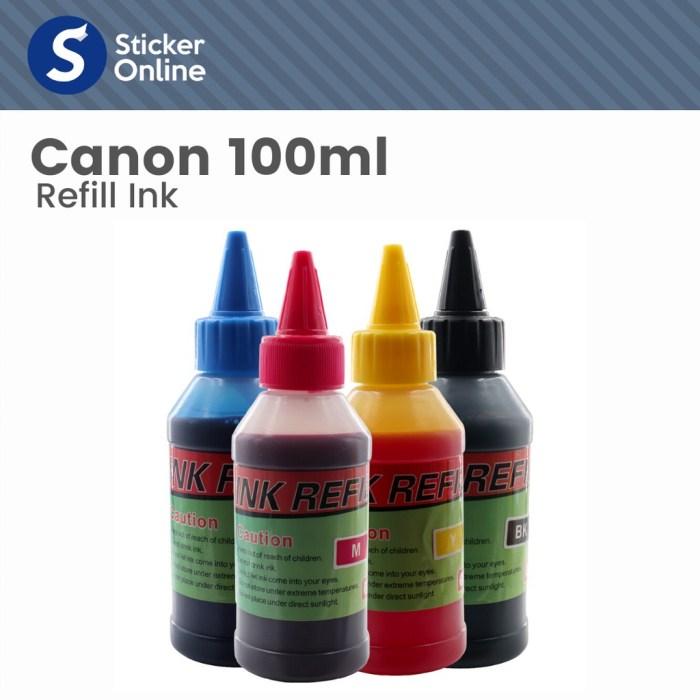
- Refill Ink Bottles or Refill Kits: These contain the ink specifically formulated for your Canon printer. Choose a brand known for quality and compatibility with your printer model. The quantity of ink should be sufficient for multiple refills, considering the cartridge capacity and typical usage.
- Gloves: Protect your hands from ink stains. Disposable nitrile or latex gloves are recommended.
- Paper Towels or Cleaning Cloths: Absorbent materials are crucial for wiping up spills and cleaning the work area. Choose lint-free cloths to avoid leaving residue on the printer or cartridges.
- Syringe and Needle (if not included in the refill kit): For refilling cartridges that require them. These allow precise ink injection into the cartridge. Ensure the needle size is appropriate for your cartridge design.
- Small Drill or Piercing Tool (if necessary): Some cartridges require drilling a small hole for ink insertion. The size and placement of the hole are critical for proper refilling. Consult your printer’s documentation or online guides for specifics.
- Work Surface Protection: Cover your work area with newspaper, a plastic sheet, or a dedicated mat to prevent ink stains.
Alternative Supplies and Substitutions
If you’re missing some of the recommended supplies, consider these alternatives:
- Ink Cartridges: If you run out of the specific ink for your model, consider purchasing a new set, or, if time is an issue, consider using a generic alternative for temporary use.
- Refill Ink Bottles or Refill Kits: If your preferred refill kit is unavailable, research reputable third-party ink brands compatible with your Canon printer model. Always check reviews and ensure the ink type matches your printer’s requirements.
- Gloves: If disposable gloves are unavailable, thoroughly wash your hands with soap and water immediately after handling ink cartridges.
- Paper Towels or Cleaning Cloths: Any absorbent cloth, such as an old t-shirt or a microfiber cloth, can substitute paper towels.
- Syringe and Needle: If a syringe is not available, you may need to purchase a refill kit that includes one. Be careful when using these tools.
- Small Drill or Piercing Tool: A small, sharp object like a thumbtack or a very small drill bit can be used to create the necessary hole, but proceed with extreme caution to avoid damaging the cartridge.
- Work Surface Protection: A large piece of cardboard or an old plastic tablecloth can protect your work surface.
Ink Refill Checklist
Use this checklist to ensure you have everything ready before starting the ink refill process:
- Ink Cartridges: Correct ink type and quantity.
- Refill Ink: Bottles or kits.
- Gloves: Disposable gloves.
- Paper Towels: or cleaning cloths.
- Syringe and Needle: (if applicable).
- Drill or Piercing Tool: (if applicable).
- Work Surface Protection: Newspaper, plastic sheet, or mat.
- Printer Power Cord: Make sure the printer is unplugged from the power source for safety.
- Printer Manual or Online Guide: For specific instructions for your printer model.
Preparing the Printer for Refilling
Before you begin the refilling process, it’s crucial to prepare your Canon printer to ensure both your safety and the longevity of your device. This involves powering down the printer, accessing the ink cartridges or tanks, and carefully removing them. These steps prevent damage to the printer’s internal components and minimize the risk of ink spills.
Friends, the journey of refilling your Canon printer ink can seem daunting, but with focus, you’ll conquer it! Remember, sometimes you might need to replace the entire cartridge, and understanding how to change canon printer ink is key. However, the ability to refill ink directly saves money and time. Stay persistent, and you will master the art of refilling your Canon printer ink like a pro.
Safely Powering Off and Unplugging the Printer
This initial step is vital for your safety and to protect your printer from potential electrical damage. It’s a fundamental practice when working with any electrical device.To safely power off and unplug your Canon printer, follow these steps:
- Locate the power button on your Canon printer. It’s usually found on the front or top panel of the printer.
- Press the power button to turn off the printer. Wait for the printer to completely shut down. You’ll often see lights dim or go out, indicating it’s off.
- Once the printer is off, locate the power cord. It’s the cable that plugs into the back of the printer and into a wall outlet.
- Carefully unplug the power cord from both the printer and the wall outlet. This ensures there’s no electrical current running through the device.
Accessing the Ink Cartridges or Ink Tanks
Accessing the ink cartridges or ink tanks is necessary to refill them. The method varies slightly depending on your Canon printer model. Refer to your printer’s manual for specific instructions.To access the ink cartridges or ink tanks:
- Open the printer’s access door or cover. This door or cover is typically located on the front or top of the printer. Some printers have a dedicated ink cartridge access panel.
- Once the access door or cover is open, the print head carriage, which holds the ink cartridges or ink tanks, should move to a central position. If it doesn’t, there might be a button or menu option on the printer’s control panel to initiate this movement. Consult your printer’s manual if needed.
- Once the print head carriage is in the accessible position, you can usually see the ink cartridges or ink tanks clearly.
Removing the Ink Cartridges or Ink Tanks from the Printer
Removing the ink cartridges or ink tanks correctly is essential to avoid spills and to ensure the refilling process goes smoothly. The mechanism for removal depends on the printer model, but the following general steps apply.To remove the ink cartridges or ink tanks:
- Locate the release mechanism for each ink cartridge or ink tank. This might be a small lever, button, or clip.
- Press the release mechanism to unlock the ink cartridge or ink tank.
- Carefully pull the ink cartridge or ink tank out of the printer. Avoid tilting or shaking them to prevent ink spills.
- If your printer uses ink tanks, they might have a locking mechanism that you need to unlock before removing them. Refer to your printer’s manual for specific instructions.
- Place the removed ink cartridges or ink tanks on a stable surface covered with paper towels or a similar absorbent material to catch any potential ink drips.
Refilling Ink Cartridges (Specific Procedure)

Refilling your ink cartridges can be a cost-effective way to keep your Canon printer running smoothly. However, it’s crucial to approach this task with care and precision. This section provides a detailed, step-by-step guide for refilling the ink cartridges of a Canon PIXMA MG3620 printer, a popular all-in-one model. Following these instructions will help ensure a successful refill and minimize the risk of printer damage.
Refilling Ink Cartridges: Canon PIXMA MG3620
Refilling ink cartridges for the Canon PIXMA MG3620 requires a specific procedure. The process involves safely accessing the ink reservoir, injecting the correct ink type, and resealing the cartridge. Careful execution of each step is essential for optimal results.
- Preparation: Before you begin, ensure you have the correct ink type for your Canon PIXMA MG3620. Typically, this model uses black ink (PG-245 or PG-245XL) and color ink (CL-246 or CL-246XL) cartridges. Place the printer on a stable, flat surface with good lighting. Have paper towels or an absorbent cloth readily available to clean up any accidental spills.
- Removing the Cartridges: Open the printer’s top cover to access the ink cartridge carriage. The carriage will automatically move to the center of the printer, making the cartridges accessible. Carefully press down on the tab located on the top of the cartridge to release it from its slot. Gently pull the cartridge out of the printer.
- Identifying the Refill Point: Locate the refill points on the top of the ink cartridge. For the PG-245/CL-246 cartridges, these are typically covered by a label. Carefully peel back the label to reveal the refill holes. Be gentle to avoid tearing the label. If the label tears, you can use tape to reseal the hole after refilling.
- Injecting the Ink: Carefully insert the needle of the ink refill syringe into the appropriate hole. Slowly inject the ink into the cartridge. For the black cartridge (PG-245/PG-245XL), inject approximately 6-8 ml of ink. For the color cartridge (CL-246/CL-246XL), inject approximately 3-4 ml of ink per color chamber (cyan, magenta, and yellow). Avoid overfilling the cartridges, as this can lead to leaks and printer malfunctions.
- Resealing the Cartridge: Once the ink has been injected, carefully reapply the label or use tape to seal the refill holes. Ensure that the seal is airtight to prevent ink leakage and drying. If the label is damaged, consider using a small piece of tape to cover the holes.
- Reinstalling the Cartridges: Carefully insert the refilled ink cartridges back into their respective slots in the printer. Ensure they click securely into place. Close the printer’s top cover.
- Printer Maintenance: After refilling, it is advisable to run a print head cleaning cycle from your printer’s control panel or software. This will help to prime the print heads and ensure optimal print quality. Print a test page to verify that all colors are printing correctly. If the print quality is poor, repeat the print head cleaning cycle or perform a nozzle check to identify and resolve any clogs.
Refilling Ink Tanks (Specific Procedure)
Refilling ink tanks, a cornerstone of cost-effective printing, requires precision. This section provides a detailed, step-by-step guide for refilling the ink tanks of a Canon PIXMA G7020 printer. This model, known for its high-volume printing capabilities, benefits significantly from the refillable ink tank system. Understanding the nuances of this process ensures optimal printer performance and longevity.
Opening the Ink Tank Refill Ports
Before refilling, the printer must be prepared. This involves accessing the ink tank refill ports, which are designed to minimize mess and facilitate easy refilling.
- Powering On the Printer: Ensure the Canon PIXMA G7020 is powered on. The printer should be in a ready state, indicated by a solid power light.
- Locating the Ink Tanks: The ink tanks are located on the front of the printer, usually behind a small access door. This door provides access to the ink tanks, which are transparent, allowing users to visually monitor ink levels.
- Opening the Tank Cover: Carefully open the access door to reveal the ink tank caps. The door is typically opened by pressing a small tab or button.
- Removing the Ink Tank Caps: Each ink tank has a colored cap corresponding to the ink color. Gently unscrew each cap to expose the refill ports. Keep the caps in a safe place to prevent contamination.
Pouring Ink into the Tanks
The process of pouring ink into the tanks requires careful handling to prevent spills and ensure the correct ink levels.
- Preparing the Ink Bottles: Ensure you have the correct ink bottles for your printer model. The Canon PIXMA G7020 uses specific ink bottles. Shake the ink bottles gently before use to ensure the ink is evenly distributed.
- Inserting the Ink Bottle Nozzle: Insert the nozzle of the ink bottle into the corresponding ink tank refill port. The nozzle is designed to fit snugly, preventing leaks. Each color has its unique nozzle to avoid incorrect filling.
- Filling the Tanks: Gently squeeze the ink bottle to fill the ink tank. Do not overfill the tank. The ink tank has a maximum fill line, and exceeding this can cause issues. Monitor the ink level through the transparent tank.
- Removing the Ink Bottle: Once the ink tank is filled to the appropriate level, remove the ink bottle from the refill port. Be careful to avoid drips.
- Replacing the Ink Tank Caps: Securely replace the caps on the ink tanks, ensuring they are tightly sealed to prevent ink leakage and air exposure.
- Closing the Access Door: Close the access door, ensuring it clicks securely into place.
- Checking the Ink Levels: After refilling, the printer may need to recognize the new ink levels. The printer’s display should show updated ink levels. If the printer does not recognize the ink, consult the printer’s manual for troubleshooting steps, which often involve a specific reset procedure.
Resetting Ink Levels
After meticulously refilling your Canon printer’s ink cartridges or tanks, a crucial step remains: resetting the ink level indicators. This process is essential to ensure your printer accurately reflects the newly filled ink levels and continues to function optimally. Failing to reset the ink levels can lead to several problems, potentially hindering your printing tasks and even causing unnecessary printer errors.
The Necessity of Resetting Ink Level Indicators
The printer’s internal system relies on the ink level indicators to estimate the remaining ink. These indicators, often represented by icons or numerical displays, provide a visual representation of the ink supply. When you refill your cartridges or tanks, the printer doesn’t automatically recognize the new ink. The system still believes the cartridges are low or empty, which can lead to various issues.
- The printer may display error messages, such as “Ink Low” or “Ink Empty,” even after refilling. This can interrupt your printing workflow and prevent you from printing altogether.
- The printer might refuse to print, citing low ink levels as the reason, despite the cartridges being full. This can be incredibly frustrating, especially when you need to print important documents.
- The printer might provide inaccurate ink level readings. This can be misleading, as you might think you have less ink than you actually do, leading to premature cartridge replacements or tank refills.
- In some cases, the printer might misinterpret the ink levels and damage the print heads. This is rare, but it highlights the importance of resetting the ink level indicators.
Methods for Resetting Ink Level Indicators on Canon Printers
Resetting ink levels varies depending on the Canon printer model. However, the underlying principle remains the same: to inform the printer that the cartridges or tanks have been refilled. The methods typically involve a combination of button presses, menu navigation, or software commands.
Method 1: Using the Printer’s Control Panel
Alright, let’s talk about keeping those Canon printers humming! Refilling ink can be a cost-effective strategy, but sometimes, you’ll need a fresh start. When those cartridges are truly spent, don’t fret; learning how to replace ink cartridge canon pixma is straightforward, as detailed here: how to replace ink cartridge canon pixma. Then, once the new cartridge is in, remember that proper refilling techniques are key to extending the life of your printer and saving money.
Keep printing!
Many Canon printers feature a built-in control panel with buttons and a display screen. This method often involves the following steps:
- Power On: Ensure your printer is turned on.
- Access the Menu: Locate the “Setup” or “Menu” button on the printer’s control panel and press it. The specific button might vary depending on your printer model; refer to your printer’s manual if necessary.
- Navigate to Ink Settings: Within the menu, look for an option related to ink levels, ink management, or maintenance. Use the arrow keys to navigate through the menu options.
- Select Ink Reset: Choose the option to reset the ink levels or acknowledge that you have refilled the cartridges. The exact wording might vary (e.g., “Reset Ink Counter,” “Continue Printing,” or “Acknowledge Ink Refill”).
- Confirm the Action: The printer might prompt you to confirm your selection. Follow the on-screen instructions to confirm the reset. This often involves pressing an “OK” or “Yes” button.
Example: A Canon PIXMA printer might have a dedicated ink button that, when pressed, displays a warning about using non-genuine ink. By pressing and holding the “Stop” button for a few seconds, the printer will usually bypass this warning and reset the ink level counter.
Friends, conquering tasks, like refilling your Canon printer, requires focus! Just as we prepare, mark your calendars because anticipation builds for the joy of easter monday 2025. But, let’s get back to the immediate win: ensure vibrant prints. Take the time, follow the steps, and master the refill. Your printer will thank you, and you’ll feel that rewarding sense of accomplishment!
Method 2: Using the Printer Software (Drivers)
Canon provides printer drivers that allow you to control various printer functions from your computer. The software typically includes an ink level monitoring tool and options for resetting ink levels. Here’s how to reset ink levels using the software:
- Install the Printer Driver: Ensure the printer driver is installed on your computer. If not, download it from the Canon website and install it.
- Open the Printer Software: Locate the printer software icon on your desktop or in the system tray (usually represented by a printer icon). Double-click the icon to open the software.
- Access the Maintenance Tab: Within the software, look for a “Maintenance,” “Utilities,” or “Settings” tab. This tab contains various printer maintenance options.
- Find the Ink Level Reset Option: Within the Maintenance tab, search for an option related to ink levels, ink counter reset, or similar wording.
- Follow the On-Screen Instructions: Select the ink level reset option and follow the on-screen instructions. The software might prompt you to confirm your action.
Example: In the Canon IJ Printer Assistant Tool, you can often find an option to reset the ink counter after refilling the cartridges. This option typically allows you to acknowledge the refill and reset the ink level indicators.
Method 3: Using a Combination of Buttons (Specific Models)
Some Canon printer models require a specific sequence of button presses to reset the ink levels. This information is usually available in the printer’s manual or online resources. The sequence can vary significantly between models.
- Consult the Manual: Refer to your printer’s manual for specific instructions on resetting ink levels. Search the manual for terms like “ink reset,” “ink counter,” or “maintenance.”
- Identify the Button Sequence: The manual will provide the exact sequence of buttons to press, often involving the “Resume/Cancel” button and the “Color/Black” buttons.
- Follow the Instructions Carefully: Carefully follow the instructions in the manual to execute the button sequence. The timing and order of button presses are crucial.
Example: For certain Canon models, pressing and holding the “Stop” button for a specific duration (e.g., 10 seconds) might reset the ink level counter. The exact time may vary based on the printer model.
Addressing Potential Issues and Solutions
If the ink levels are not reset after refilling, you may encounter several problems. Understanding these issues and their solutions can help ensure smooth printing.
- Error Messages: The printer might continue to display “Ink Low” or “Ink Empty” error messages. The solution is to accurately reset the ink levels using one of the methods described above. Double-check that you are following the correct procedure for your specific printer model.
- Printing Refusal: The printer might refuse to print, even with refilled cartridges. The solution is to reset the ink levels and bypass any warnings related to non-genuine ink. Some printers have a setting that allows you to override ink warnings and continue printing.
- Inaccurate Ink Level Readings: The printer might show incorrect ink level readings. The solution is to reset the ink levels. Be aware that the printer’s ink level indicators are only estimates, and the accuracy can be affected by various factors.
- Print Quality Issues: If the ink levels are not correctly recognized, you might experience poor print quality, such as streaking or faded colors. The solution is to reset the ink levels and, if necessary, perform print head cleaning and alignment.
- Printer Malfunctions: In rare cases, failing to reset the ink levels might lead to printer malfunctions or damage. While this is not a common occurrence, it emphasizes the importance of resetting the ink levels.
Troubleshooting Common Problems
Refilling your Canon printer’s ink can sometimes present challenges, even when following the correct procedures. Understanding these potential issues and knowing how to resolve them is crucial for a smooth and successful refilling experience. This section addresses the most common problems you might encounter and provides practical solutions to keep your printer running efficiently.Printer issues can stem from various sources, from ink leakage to print quality degradation, or even printer error messages.
Proper troubleshooting can save time and prevent costly repairs.
Ink Leakage Issues, How to refill ink in canon printer
Ink leakage is a frustrating issue, often resulting in messy spills and potential damage to your printer. Several factors can contribute to this problem, requiring careful attention during the refilling process.
- Overfilling the Cartridge or Tank: Exceeding the recommended ink capacity is a primary cause.
When refilling cartridges, avoid filling them to the brim. Instead, leave a small space at the top. For ink tanks, carefully monitor the ink level, stopping when it reaches the designated fill line. Overfilling can lead to ink overflow and leakage during printing or handling.
- Using the Wrong Ink Type: Using incompatible ink can cause the cartridge or tank to malfunction.
Incorrect ink can damage the print head and lead to leaks. Always use the correct ink type specified for your Canon printer model. Refer to the printer’s manual or the ink cartridge itself for compatibility information.
- Damaged Cartridge or Tank: Cracks or other damage can compromise the integrity of the cartridge or tank.
Inspect the cartridge or tank for any visible damage, such as cracks or breaks, before refilling. If damage is present, replace the cartridge or tank. Attempting to refill a damaged component will likely result in leaks and further printer issues.
- Incorrect Sealing: Improperly sealing the cartridge or tank after refilling can cause leaks.
Ensure that the cartridge or tank is properly sealed after refilling. This includes securely closing any plugs or caps. If the seal is compromised, ink will likely leak. Test the seal by gently pressing on the cartridge or tank after sealing.
Print Quality Problems
Poor print quality can manifest in various ways, including streaks, faded colors, and incomplete images. These issues can be caused by several factors.
- Clogged Print Head: Dried ink can obstruct the print head nozzles.
Clogged print heads are a common culprit behind poor print quality. This can be due to infrequent printing or the use of incorrect ink. Try running the printer’s cleaning cycle to clear any blockages. If the problem persists, you might need to perform a deep cleaning or manually clean the print head using a cleaning solution and a soft cloth.
- Incorrect Ink Level: Insufficient ink can lead to faded prints or incomplete images.
Ensure that the ink cartridges or tanks have adequate ink. Refill them when the ink level is low, or consider replacing them if they are too depleted. Even if you think you have enough ink, it can still lead to print quality issues if the level is low. Monitoring ink levels is vital for maintaining print quality.
- Using Low-Quality Ink: Substandard ink can negatively impact print quality.
Using low-quality or generic ink can result in poor print quality. Always use high-quality ink that is specifically designed for your Canon printer model. This ensures optimal performance and print quality.
- Incorrect Print Settings: Incorrect print settings can affect the output.
Ensure the print settings are configured correctly for the type of paper and the desired print quality. For instance, using the wrong paper type can lead to smudging or uneven ink distribution. Also, ensure the correct print quality settings (e.g., draft, normal, or high quality) are selected for the task.
Printer Error Messages
Printer error messages can indicate various issues, from ink-related problems to hardware failures. These messages provide valuable clues for diagnosing and resolving problems.
- Ink Cartridge Error: The printer may fail to recognize the ink cartridge.
This often occurs after refilling. Try removing and reinserting the cartridge. If the problem persists, ensure the cartridge is properly installed and that the chip is clean. You might need to reset the ink level or bypass the ink monitoring system, depending on your printer model.
- Low Ink Warning: The printer may display a warning message about low ink levels.
This is a common occurrence after refilling. If the ink level has been reset, the printer might still display a low ink warning. This can usually be ignored if you are certain the cartridge or tank is full. You may need to disable ink level monitoring to continue printing.
- Printer Jam Error: The printer may indicate a paper jam, even if there isn’t one.
Sometimes, refilling can cause paper jam errors. Check for any paper fragments inside the printer and clear them. If the error persists, restart the printer. This may resolve the issue.
If the problem continues, consult the printer’s manual for troubleshooting steps.
- Service Error: A service error may indicate a more serious problem.
A service error message often indicates a hardware failure. In this case, contact Canon support or a qualified technician for assistance. Do not attempt to repair the printer yourself unless you have the necessary expertise.
Problem Solving Table
The following table summarizes common problems, potential causes, and solutions.
| Problem | Potential Causes | Solutions | Additional Notes |
|---|---|---|---|
| Ink Leakage | Overfilling, Wrong ink type, Damaged cartridge/tank, Improper sealing | Refill with the correct amount, Use correct ink, Replace damaged parts, Ensure proper sealing | Always check for leaks after refilling and handling. |
| Print Quality Problems | Clogged print head, Low ink level, Low-quality ink, Incorrect print settings | Run print head cleaning, Refill ink, Use high-quality ink, Adjust print settings | Print a test page after cleaning and adjusting settings. |
| Ink Cartridge Error | Cartridge not recognized, Chip issues | Remove and reinsert, Clean the chip, Reset ink levels | Ensure the cartridge is properly installed. |
| Low Ink Warning | Ink level monitoring issue | Ignore the warning, Disable ink level monitoring (if applicable) | Monitor ink levels manually. |
Print Quality Considerations
Refilling your Canon printer’s ink cartridges or tanks can be a cost-effective way to keep your printer running, but it’s essential to understand how it can impact the quality of your prints. While refilling with the correct ink type and following the proper procedures minimizes risks, print quality can still be affected. Understanding these potential issues and knowing how to address them is crucial for achieving the best possible results.
Print Quality Degradation
Print quality can decline after refilling ink cartridges for several reasons. The consistency and formulation of the refilled ink might slightly differ from the original Canon ink, potentially leading to subtle color variations or inconsistencies. Additionally, air bubbles introduced during the refilling process can disrupt ink flow, causing streaks or missing lines in your prints. The print head itself, a delicate component, can become clogged if the ink isn’t properly filtered or if particles from the refilling process enter it.
Maintaining Optimal Print Quality
To maintain optimal print quality after refilling, several measures should be taken. These practices will help to ensure the longevity of your prints and printer.
- Ink Selection: Always use ink specifically formulated for your Canon printer model. Using the wrong ink can lead to print quality problems and potentially damage the print head. Look for inks that match the original Canon ink’s specifications.
- Careful Refilling: Refill cartridges or tanks slowly and carefully, avoiding air bubbles. Use a syringe or other appropriate tool designed for refilling to control the ink flow.
- Print Head Cleaning: Regularly perform print head cleaning cycles through your printer’s software. This removes dried ink and clogs, ensuring smooth ink flow. Canon printers usually offer multiple cleaning levels, from standard to deep cleaning.
- Print Head Alignment: After refilling or cleaning, run the print head alignment function. This aligns the print head nozzles to ensure that colors and lines are printed accurately.
- Test Prints: After refilling and any maintenance, print a test page or a sample document with various colors and text sizes. This helps to identify any immediate print quality issues.
- Storage: If you are not using the printer for an extended period, consider storing the ink cartridges in a sealed bag to prevent the ink from drying out.
Print Head Cleaning and Alignment Procedures
Maintaining your printer’s print head is essential for consistent, high-quality prints. Print head cleaning and alignment are routine maintenance tasks that can significantly improve print quality after refilling.
Print head cleaning addresses clogs or dried ink, while print head alignment ensures accurate printing.
- Accessing the Printer’s Maintenance Menu: Locate the maintenance or settings section within your Canon printer’s software or the printer’s control panel. The exact location varies depending on the printer model. Usually, it’s found under “Maintenance,” “Tools,” or “Settings.”
- Print Head Cleaning: Within the maintenance menu, select the “Print Head Cleaning” option. The printer will usually offer different cleaning levels, such as “Standard” and “Deep” cleaning. Start with the standard cleaning option and then perform a test print to assess the print quality. If the print quality is still poor, perform a “Deep” cleaning. Be aware that deep cleaning consumes more ink.
- Print Head Alignment: After cleaning, or if you notice alignment issues, select the “Print Head Alignment” option. The printer will print a test pattern with lines or patterns. Follow the on-screen instructions to select the pattern that produces the best results. The printer will then adjust the print head alignment accordingly. Some printers automate this process, while others require manual selection of the best alignment pattern.
- Test Prints After Cleaning and Alignment: After both cleaning and alignment, print a test page to confirm that the print quality has improved. If issues persist, repeat the cleaning and alignment procedures or consult your printer’s manual for more specific troubleshooting steps.
By performing print head cleaning and alignment, you are ensuring the optimal performance of your Canon printer, extending its life and maximizing the quality of your printed documents.
Safety Precautions
Refilling your Canon printer’s ink can be a cost-effective solution, but it’s essential to prioritize safety to protect yourself, your workspace, and the environment. Handling ink requires caution to avoid stains, health hazards, and environmental contamination. Proper procedures for handling ink and disposing of cartridges and bottles are vital for a safe and responsible experience.
Handling Ink Safely
Ink, although not typically highly toxic, can cause skin and eye irritation. It can also stain clothing and surfaces. Therefore, it is crucial to follow specific safety guidelines.
- Wear Protective Gloves: Always wear disposable gloves, such as nitrile or latex, to prevent ink from contacting your skin. This is especially important if you have sensitive skin or are prone to allergies.
- Work in a Well-Ventilated Area: Ensure adequate ventilation to minimize exposure to ink fumes. Open windows or use a fan to circulate air.
- Protect Your Work Surface: Cover your work surface with newspapers, a plastic sheet, or a disposable mat to prevent ink spills from damaging the surface.
- Avoid Contact with Eyes and Mouth: If ink gets into your eyes, rinse them immediately with plenty of water for at least 15 minutes. If swallowed, seek medical attention. Do not induce vomiting.
- Avoid Direct Sunlight and Extreme Temperatures: Store ink cartridges and bottles in a cool, dry place away from direct sunlight and extreme temperatures, which can affect ink quality.
- Wash Hands Thoroughly: After refilling or handling ink, even with gloves, wash your hands thoroughly with soap and water.
Disposing of Used Ink Cartridges and Bottles
Proper disposal of used ink cartridges and bottles is crucial for environmental protection. Canon and other manufacturers offer various recycling programs to reduce waste and prevent pollution.
- Recycle Ink Cartridges: Many retailers, such as Staples, Office Depot, and Best Buy, offer ink cartridge recycling programs. Check with your local stores for drop-off locations. Canon also has its own recycling program.
- Return to Manufacturer: Canon provides a recycling program for its cartridges. You can typically find details on the Canon website regarding how to participate. This often involves printing a prepaid shipping label and sending the cartridges back to the manufacturer.
- Follow Local Regulations: Check your local regulations for any specific guidelines regarding ink cartridge disposal. Some areas may have designated collection points or specific disposal requirements.
- Do Not Throw in Regular Trash: Ink cartridges and bottles should not be disposed of in regular household trash, as they can leach chemicals into the environment.
- Dispose of Empty Ink Bottles Responsibly: Empty ink bottles should also be recycled or disposed of according to local regulations. Rinse them thoroughly if possible before disposal.
Cleaning Up Ink Spills
Ink spills are inevitable. Knowing how to clean them up quickly and effectively is important.
- Act Quickly: The faster you address a spill, the easier it will be to clean up.
- Blot, Don’t Rub: Use a clean cloth or paper towel to blot up the ink. Avoid rubbing, as this can spread the stain.
- Use Appropriate Cleaning Agents: For minor spills, use water and a mild detergent. For more stubborn stains, you may need to use isopropyl alcohol or a specialized ink remover. Always test the cleaning agent in an inconspicuous area first to ensure it doesn’t damage the surface.
- Treat Stains on Clothing: Treat ink stains on clothing immediately. Blot the stain and rinse with cold water. Apply a stain remover and wash the garment according to the care instructions. Soaking the garment in milk overnight can sometimes help lift the stain.
- Clean the Printer: If ink spills inside the printer, unplug the printer and carefully clean the affected areas with a damp cloth. Allow the printer to dry completely before plugging it back in.
- Dispose of Cleaning Materials Properly: Dispose of used paper towels, cloths, and cleaning agents according to local regulations. Avoid contaminating other waste streams.
Long-Term Ink Refilling Practices
Maintaining your Canon printer through consistent ink refilling requires more than just knowing how to fill the cartridges or tanks. It involves understanding best practices for storing ink, optimizing refill frequency, and performing regular printer maintenance to ensure longevity and optimal print quality. These practices are crucial for cost-effectiveness and maximizing the lifespan of your printer.
Best Practices for Storing Ink
Proper ink storage is paramount to preserving its quality and preventing damage to your printer. Incorrect storage can lead to clogs, faded prints, and ultimately, printer failure.
- Temperature Control: Store ink in a cool, dry place, away from direct sunlight and extreme temperatures. Ideal storage temperatures are typically between 15°C and 25°C (59°F and 77°F). Excessive heat can cause the ink to thicken or dry out, while freezing can damage its components.
- Sealed Containers: Always store ink in its original, sealed containers or in airtight refill bottles. This prevents evaporation and contamination from dust or other particles. Ensure the caps are tightly closed after each use.
- Shelf Life Awareness: Be mindful of the ink’s shelf life. Most ink manufacturers provide an expiration date. Using expired ink can result in poor print quality and potential damage to the print heads.
- Avoid Direct Contact: Keep ink bottles upright to prevent leaks. Handle ink cartridges and bottles with care to avoid spills, as ink stains can be difficult to remove.
Refilling Frequency for Ink Cartridges or Tanks
Determining the optimal refill frequency depends on your printing habits and the type of printer you have. Refilling too frequently can be wasteful, while waiting too long can lead to print quality issues or even printer damage.
- Monitoring Ink Levels: Regularly check the ink levels displayed on your printer’s control panel or through the printer software on your computer. Pay attention to low ink warnings.
- Print Volume: Consider the volume of your printing. If you print frequently, you may need to refill more often. For infrequent users, refills can be less frequent.
- Print Quality Checks: Regularly print test pages or nozzle check patterns. If you notice streaks, faded colors, or missing lines, it’s a sign that your ink levels are low or that your print heads need cleaning.
- Cartridge vs. Tank Systems: Ink tank printers, which typically have larger ink reservoirs, may require less frequent refills compared to cartridge-based systems. However, even tank systems need refilling. The frequency also depends on the tank capacity. For instance, a Canon MegaTank printer might last for several thousand pages before needing a refill.
Importance of Regular Printer Maintenance
Regular printer maintenance complements your ink refilling efforts, ensuring that your printer operates efficiently and produces high-quality prints. This proactive approach can prevent common problems and extend the life of your printer.
- Print Head Cleaning: Perform print head cleaning cycles as needed, especially if you experience print quality issues. This process removes dried ink and other debris that can clog the nozzles. Most Canon printers have a built-in cleaning function accessible through the printer’s control panel or software.
- Nozzle Check: Run a nozzle check pattern periodically to assess the condition of your print heads. This test prints a series of lines and patterns that indicate whether all nozzles are functioning correctly.
- Alignment: Align the print heads after refilling ink or replacing cartridges to ensure accurate color reproduction and sharp text.
- Internal Cleaning: Clean the internal components of the printer, such as the rollers, to remove dust and paper particles. This can prevent paper jams and maintain smooth paper feeding.
- Firmware Updates: Keep your printer’s firmware up to date. Firmware updates often include bug fixes, performance improvements, and enhanced compatibility with new operating systems. These updates are available from the Canon website.
Alternative Refilling Methods
For those seeking alternatives to the standard ink refilling procedures, several methods offer varying levels of convenience, cost-effectiveness, and complexity. These alternative approaches can be particularly appealing to users who frequently print or are looking for ways to minimize the cost of ink over time. Understanding these methods, including their advantages and disadvantages, allows for informed decision-making when it comes to maintaining your Canon printer.
Refill Kits
Refill kits provide a comprehensive solution for refilling ink cartridges. They typically include ink bottles, syringes or dispensing tools, and often, specific instructions for refilling particular cartridge models. The kits are designed to be a more cost-effective solution compared to purchasing new cartridges repeatedly.A typical refill kit might contain:
- Ink Bottles: Specifically formulated for the printer’s ink type (dye-based or pigment-based). The ink bottles usually contain a specific amount of ink, measured in milliliters (ml) or fluid ounces (fl oz). The ink is often designed to match the original ink’s properties, ensuring color accuracy and print quality.
- Syringes or Dispensing Tools: Used to extract ink from the bottles and inject it into the cartridge. These tools are usually graduated to help measure the correct amount of ink.
- Needles or Cartridge Adapters: These are specifically designed to fit the cartridge’s ink intake holes. Some kits might include adapters for various cartridge types.
- Gloves: To prevent ink stains on hands.
- Drilling Tool (Optional): Some kits may include a small drill for creating a fill hole in certain cartridge models.
- Instructions: Step-by-step guidance for refilling the specific cartridge models. These instructions often include diagrams and images.
Refill kits offer several advantages:
- Cost Savings: Significantly cheaper than buying new cartridges repeatedly. Refilling a cartridge can reduce the cost per print by a substantial margin.
- Convenience: Provides all the necessary supplies in one package.
- Environmental Friendliness: Reduces plastic waste compared to constantly discarding cartridges.
- Availability: Readily available online and in many retail stores.
However, there are also disadvantages to consider:
- Potential for Mess: Refilling can be a messy process, with the risk of ink spills.
- Print Quality Issues: The print quality can sometimes be compromised if the ink isn’t compatible or if the refilling process isn’t done correctly.
- Cartridge Damage: Improper refilling can damage the cartridge or the printer.
- Warranty Concerns: Refilling cartridges may void the printer’s warranty.
Demonstrating the Use of a Refill Kit:The refilling process using a refill kit involves several key steps. These steps can vary slightly depending on the specific kit and cartridge model. However, the general procedure is as follows.
1. Preparation
- Gather Supplies: Ensure you have the refill kit, paper towels, gloves, and the cartridge to be refilled.
- Protect the Work Area: Cover the work surface with newspaper or a protective mat to prevent ink spills.
- Wear Gloves: Put on the gloves provided in the kit to avoid ink stains on your hands.
2. Preparing the Cartridge
- Locate the Fill Holes: Identify the ink intake holes on the top of the cartridge. Some cartridges have a label covering the holes, which may need to be removed.
- Drilling (If Necessary): Some cartridges require drilling a small hole to access the ink chamber. Use the drilling tool provided in the kit, if applicable.
3. Refilling the Cartridge
- Extract Ink: Using the syringe, draw ink from the refill bottle. Follow the kit’s instructions regarding the amount of ink to draw. Overfilling can cause leaks.
- Inject Ink: Carefully insert the syringe needle into the fill hole and slowly inject the ink. Avoid injecting air bubbles.
- Repeat for Each Color: If refilling a multi-color cartridge, repeat the process for each color chamber.
4. Final Steps
- Clean the Cartridge: Wipe away any excess ink from the cartridge.
- Seal the Hole (If Applicable): If a hole was drilled, seal it with tape or a plug provided in the kit.
- Install the Cartridge: Carefully install the refilled cartridge back into the printer.
- Run Print Head Cleaning: Perform a print head cleaning cycle to ensure proper ink flow.
- Print a Test Page: Print a test page to check the print quality and ensure all colors are printing correctly.
Continuous Ink Systems (CIS)
Continuous Ink Systems (CIS) offer a more permanent and extensive solution to refilling. They consist of external ink tanks connected to the printer’s cartridges via tubing. This allows for a continuous supply of ink, eliminating the need to frequently refill cartridges.CIS systems offer advantages such as:
- High Volume Printing: Ideal for users who print frequently and in large volumes.
- Cost Efficiency: Significantly reduces the cost per print compared to standard cartridges.
- Convenience: Eliminates the need to frequently replace or refill cartridges.
- Print Quality: Print quality can be consistent if the CIS is properly maintained and uses quality ink.
However, there are also disadvantages:
- Initial Investment: CIS systems have a higher upfront cost compared to refill kits.
- Complexity: Installation and maintenance can be more complex.
- Printer Compatibility: Not all printer models are compatible with CIS systems.
- Potential for Leaks: Tubing and connections can be prone to leaks if not properly installed or maintained.
- Space Requirements: Requires extra space to accommodate the external ink tanks.
Visual Guides (Illustrations)

Visual guides are crucial for understanding the ink refilling process. They provide a clear, step-by-step demonstration, minimizing the risk of errors and helping users perform the task confidently. The following sections detail the necessary illustrations to enhance the refilling experience, ensuring clarity and accuracy in the process.
Illustrations Depicting the Steps of Refilling an Ink Cartridge
Refilling an ink cartridge involves several precise steps. Visual aids are essential for guiding users through this process, particularly for those unfamiliar with the procedure. Each illustration should clearly depict a specific action, ensuring that the user can easily follow the instructions.
- Illustration 1: Preparing the Cartridge. This illustration should depict the ink cartridge being removed from the printer and placed on a stable surface, such as a piece of newspaper or a paper towel. It should highlight the ink cartridge model number (e.g., PG-245, CL-246) visible on the cartridge itself. A close-up view of the cartridge’s top, where the label and any protective covering are located, is necessary.
The illustration should show a tool (e.g., a small screwdriver or a utility knife) being used to carefully remove the label or covering, exposing the fill holes.
- Illustration 2: Inserting the Needle. This illustration focuses on the proper insertion of the refill needle into the fill hole. The needle should be depicted as being inserted at a slight angle to avoid damaging the internal components of the cartridge. The illustration should indicate the recommended depth of insertion, usually around half an inch to an inch, depending on the cartridge model. It should show the needle being inserted slowly and steadily to prevent ink from spilling or creating air bubbles.
- Illustration 3: Injecting the Ink. This illustration should depict the ink bottle being held over the cartridge, with the needle inserted. It should show the user slowly squeezing the ink bottle to inject ink into the cartridge. The illustration should indicate the recommended ink volume for each color (e.g., 5-6 ml for black, 2-3 ml for color cartridges), using visual cues like a graduated scale on the ink bottle.
The illustration should also emphasize the importance of injecting the ink slowly to prevent overflow and air bubbles.
- Illustration 4: Sealing the Cartridge. This illustration should depict the cartridge being sealed after refilling. It should show the user carefully re-applying the label or covering over the fill holes. If a refill kit provides specific sealing materials, the illustration should show these being used (e.g., tape, plugs). The illustration should also show the cartridge being wiped clean with a paper towel to remove any ink spills.
- Illustration 5: Installing the Cartridge. This illustration should show the refilled cartridge being inserted back into the printer. It should highlight the correct orientation of the cartridge and show the printer’s cartridge compartment. The illustration should also show the printer door being closed.
Illustrations Depicting the Steps of Refilling an Ink Tank
Refilling ink tanks, commonly found in Canon’s MegaTank printers, requires a different approach than refilling cartridges. The illustrations should focus on the specific procedures for these printer models.
- Illustration 1: Locating the Ink Tanks. This illustration should show the ink tank compartment on the printer. It should clearly identify each ink tank with its corresponding color (e.g., black, cyan, magenta, yellow). The illustration should depict the location of the ink level indicators on the printer.
- Illustration 2: Opening the Ink Tank. This illustration should show the ink tank being opened to access the refill port. It should clearly depict the specific mechanism for opening the tank, which may involve a cap or a lever. The illustration should emphasize the need to handle the tank with care to avoid spills.
- Illustration 3: Preparing the Ink Bottle. This illustration should show the ink bottle being prepared for refilling. It should depict the ink bottle being uncapped and the nozzle being positioned correctly for insertion into the ink tank. The illustration should indicate any protective features on the bottle or the tank, such as a one-way valve.
- Illustration 4: Refilling the Ink Tank. This illustration should depict the ink bottle being used to refill the ink tank. It should show the bottle being held vertically over the tank and the ink being slowly poured into the tank. The illustration should indicate the maximum fill line on the ink tank and emphasize the importance of not overfilling.
- Illustration 5: Closing the Ink Tank and Final Steps. This illustration should show the ink tank being closed after refilling. It should depict the cap or lever being secured. The illustration should also show the user wiping the area clean with a paper towel. The illustration should show the printer being turned on and the ink levels being checked.
Illustration Showcasing the Difference Between Original and Refilled Ink Cartridges
This illustration serves to highlight the visual differences between a genuine Canon ink cartridge and a refilled one. This comparison can help users understand the potential benefits and drawbacks of refilling.
- Illustration 1: Side-by-Side Comparison. The illustration should present a side-by-side comparison of an original Canon ink cartridge and a refilled cartridge. Both cartridges should be labeled clearly. The original cartridge should appear pristine, with its original label intact and the ink level indicator showing full. The refilled cartridge should show the label or covering, with signs of having been removed and resealed.
- Illustration 2: Detailed View of the Refilled Cartridge. This close-up view should focus on the refilled cartridge. It should highlight any visible signs of the refilling process, such as:
- Slight variations in the label.
- Possible traces of ink residue around the fill holes.
- The presence of any sealing materials used.
- Illustration 3: Textual Annotations. The illustration should include textual annotations that explain the key differences:
- Original Cartridge: “Genuine Canon Ink – Guaranteed Quality.”
- Refilled Cartridge: “Refilled Ink – Cost-Effective Alternative.”
The annotation should also mention the potential for print quality variations and the need for careful handling when refilling.
Last Point
Refilling your Canon printer’s ink is a practical and environmentally conscious choice. By following the guidelines Artikeld in this comprehensive guide, you can significantly reduce printing costs, minimize waste, and maintain optimal print quality. From understanding your printer model to mastering the refilling process and troubleshooting common problems, you’re now well-equipped to embrace the world of cost-effective printing. Happy refilling!
Expert Answers: How To Refill Ink In Canon Printer
What types of ink can I use to refill my Canon printer?
The ink type depends on your specific Canon printer model. Always use ink specifically designed for your printer model to ensure optimal print quality and prevent damage. Check your printer’s manual or the ink cartridge itself for the correct ink type.
Is it safe to refill my Canon printer’s ink cartridges?
Yes, refilling ink cartridges is generally safe if you follow the proper procedures and take necessary precautions. Wear gloves to avoid staining your hands, work in a well-ventilated area, and be careful when handling ink to prevent spills. Always refer to your printer’s manual for specific safety guidelines.
Will refilling ink void my printer’s warranty?
Refilling ink cartridges generally doesn’t void your printer’s warranty, but using third-party ink or refilling can sometimes lead to issues. It’s best to check your printer’s warranty terms or contact Canon support for clarification on their policy regarding refilled or third-party ink.
How often should I refill my ink cartridges or tanks?
The frequency of refilling depends on your printing habits and the ink capacity of your cartridges or tanks. Monitor your ink levels and refill when the printer indicates low ink or when print quality begins to degrade. Regular refilling helps maintain consistent print quality and prevents the print head from drying out.


